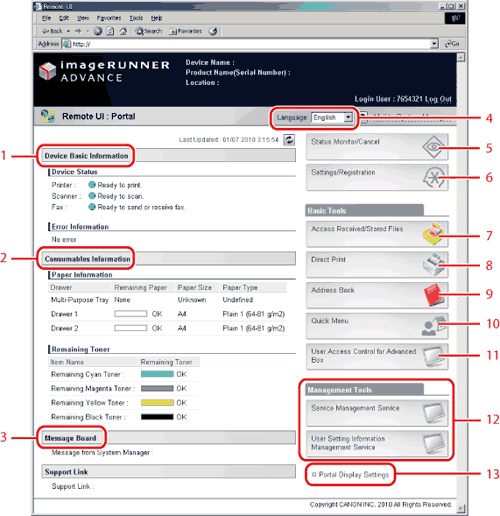
The screen below, which appears when you start your Web browser and log in to the Remote UI, is called the Portal page.
| 1 |
Device Basic Information
Displays information on the remaining amount of paper and toner. |
2 |
Consumables Information
Displays information on the remaining amount of paper and toner. |
| 3 |
Message Board
Displays messages from the administrator. To set message board settings, click [Settings/Registration] → [Management Settings] → [License/Other] → [Delete Message Board Contents].
You can set the following pop-up window display settings:
- If [All Times] is set, you cannot clear a message that appears in the touch panel display. (To clear a message, press
 (Settings/Registration) → [Delete Message Board Contents] or adjust the settings on the Remote UI.) (Settings/Registration) → [Delete Message Board Contents] or adjust the settings on the Remote UI.)
- If [Display When Auto Reset] is set, you can clear a message that appears in the touch panel display by pressing [Close]. The message will reappear when auto reset is performed for the touch panel display.
|
4 |
Language
From the drop-down list, you can select the language displayed on the screen. |
| 5 |
Status Monitor/Cancel
Displays the current status of jobs, and permits changes to jobs being processed by the machine. Also displays the status of the machine. (→Job Management, Device Status and Information Display) |
6 |
Settings/Registration
Enables you to specify or change various system settings on the machine. The settings you can set/change differ depending on whether you logged in as a general user or administrator. (→Customizing the Machine's Settings (Settings/Registration)) |
| 7 |
Access Received/Stored Files
Enables you to print, move, or send documents stored in inboxes. (→Managing Inboxes) |
8 |
Direct Print
Enables you to print PDF (Portable Document Format), PS/EPS (PostScript/Encapsulated PostScript), XPS (XML Paper Specification), and image files that are stored in your computer or on the network without opening the files. (→Printing PDF, PS/EPS, XPS, or Image Files Directly (Direct Print)) |
| 9 |
Address Book
Enables you to manage the machine's Address Book, including the storing and editing of addresses. (→Managing the Address List) |
10 |
Quick Menu
Enables you to import/export Quick Menu buttons. This is available only when you are logged in as the administrator. (→Quick Menu) |
| 11 |
User Access Control for Advanced Box
Enables you to manage user information stored in Advanced Box. (→Security) |
12 |
Management Tools
Enables you to use SMS and set user information. The management applications are displayed only when you are logged in as the administrator. (→MEAP, Security) |
| 13 |
Portal Display Settings
You can change the order that the applications are displayed on the portal page. The
management applications are displayed only when you logged in as the administrator. |