Remote UI > Audit Log Management > Managing Logs > Exporting Collected Logs
*
Exporting Collected Logs

Return to Overview


You can save the various logs collected from the machine all together to a computer in the CSV format.


Remark
  • To export the various logs collected from the machine, use SSL or IPSec. To use SSL, set [Use SSL] to 'On' → restart the machine (→Setting Remote UI). If you want to use IPSec, see "Network."

The log type numbers indicated in the logs to be exported correspond to the following log types:

4098 User Authentication Log
1001/8193 Job Log
8197 Mail Box/Inbox Document Operation Log
8199 Mail Box/Inbox Authentication Log
8200 Network Connection Log
8198 System Management Log
3001 Log for Audit Log Management

  1. Click [Settings/Registration] → [Device Management] → [Export/Clear Audit Log].
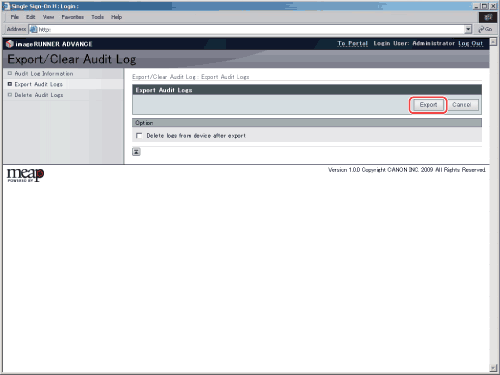
  1. Click [Export] for <Export Audit Logs>.

To automatically delete the logs after they are exported, select [Delete logs from device after export].

  • If you select [Delete logs from device after export], make sure to select [Store] after clicking [Export]. If you select [Cancel], the logs will be deleted without being saved.
  1. Follow the instructions on the screen to specify the location where you want to save the file.
  • Log collection is stopped while the export process is being performed.
  • If the display language setting of the machine is different from when the logs were collected, the file may contain garbled characters when the logs are exported.
  • Back To Top