Scan and Send > Color Settings
*
Color Settings

This machine comes with two Automatic Color Selection modes. You can also manually select the Full Color, Grayscale, or Black-and-White mode whenever necessary.


Remark
  • The default setting is [Auto (Color/Gray)].
  • If the Preview mode is set, you can verify the images from the Preview screen before sending your document. (See "Preview.")
  • To cancel all settings, press (Reset).

  • Auto (Color/Gray)

If the Auto (Color/Gray) mode is selected, the machine automatically recognizes whether the original is in color or black-and-white. Color originals are scanned in the Full Color mode, while black-and-white originals are scanned in the Grayscale mode.


  • Auto (Color/Black)

If the Auto (Color/Black) mode is selected, the machine automatically recognizes whether the original is in color or black-and-white. Color originals are scanned in the Full Color mode, while black-and-white originals are scanned in the Black-and-White mode.


Remark
  • When [Auto (Color/Gray)] or [Auto (Color/Black)] is set and your originals contain color sections, the machine scans them in the Full Color mode. However, the machine may scan the color originals in the Black-and-White mode under the following conditions. To avoid this, set the color mode to [Full Color].
  • If the originals contain a few color sections
  • If the originals contain light color densities
  • If the color sections of the original are close to black
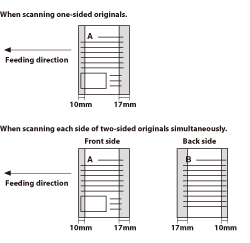
  • If the color sections are located only on the left side on the left side (within 10 mm from the left edge) or on the right side (within 17 mm from the right edge) of the originals when placing the originals into the feeder


  • Full Color

The Full Color mode always scans in color regardless of whether the original is in color or black-and-white.


Remark
  • If a black-and-white original is scanned in the Full Color mode, it is counted as a color scan.

  • Grayscale

The Grayscale mode always scans in grayscale regardless of whether the original is in color or black-and-white.

  • Black & White

The Black-and-White mode always scans in black-and-white regardless of whether the original is in color or black-and-white.


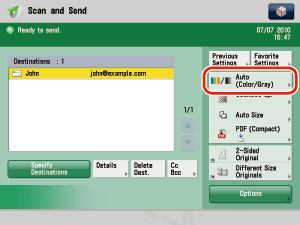
  1. Place your originals and specify the destination → press the Select Color button.

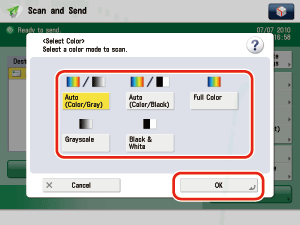
  1. Select [Auto (Color/Gray)], [Auto (Color/Black)], [Full Color], [Grayscale], or [Black & White] → [OK].
  • If you set the color mode to [Auto (Color/Black)] and select PDF (Trace), PDF (Compact), XPS (Compact) as the file format, the color mode is automatically changed to [Auto (Color/Gray)] when scanning. If you want to send the document in the Auto (Color/Black) mode, change the file format to anything other than PDF (Trace), PDF (Compact), XPS (Compact).
  • If you set the color mode to [Black & White] and select PDF (Trace), PDF (Compact), XPS (Compact) as the file format, the color mode is automatically changed to [Grayscale] when scanning. If you want to send the document in the Black-and-White mode, change the file format setting to anything other than PDF (Trace), PDF (Compact), XPS (Compact).
  • When PDF (Trace), PDF (Compact), XPS (Compact) is selected as the file format, if you specify [Auto (Color/Black)] or [Black & White] as the color mode and press [OK], a message asking for your confirmation to change the file format appears on the screen.
  • If [OOXML] is selected as the file format, you can only send in [Auto (Color/Gray)], [Full Color], or [Grayscale].

  • Back To Top