Access Stored Files > Job Separator
*
Job Separator

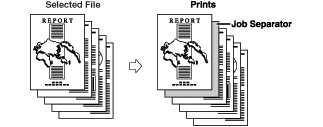
If you select multiple files and set the Merge Files and Print mode, you can specify the Job Separator mode. The Job Separator mode automatically adds job separator sheets to divide each document, using a different type of paper from that used for the main document.


Remark
  • For information on the modes which cannot be set in combination with this mode, see "Combination of Functions Chart."
  • This mode can be used only for printing a file stored in a mail box.
  • You can set the Job Separator mode only if you select multiple files and set the Merge Files and Print mode. (See "Merging Files.")
  • You cannot print on the job separator sheets.
  • If you select the Staple mode when a finisher is attached, you cannot staple more than 30 sheets of A3, B4, or A4R paper, or 50 sheets of A4 or B5 paper.
  • If you are printing on the sheet insertions, these sheets are included in the count of the total number of prints made. If these sheets are left blank, however, the machine's counter does not count them as prints.
  • Job separator sheets are not counted as prints.
  • If you want to set both Add Cover and Job Separator,
    select the same paper size.

  1. Select the desired Mail Box.
  1. Select the file that you want to print → press [Print] → [Change Print Settings] → [Options].
  1. Press [Job Separator].

[Merge Files and Print] is displayed only when the multiple documents are selected.

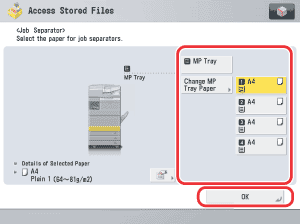
  1. Select the paper source to use for the job separator sheets → press [OK].


  • Back To Top