Access Stored Files > Sending a File
*
Sending a File

You can send files stored in Mail Boxes.

For information on the optional products required to use this function, see "Optional Products Required for Each Function."


Remark
  • This mode can be used only for sending a file stored in a mail box.
  • Files with a resolution other than 600 × 600 dpi cannot be sent if there is a fax destination included in the destination.

  1. Select the desired Mail Box.
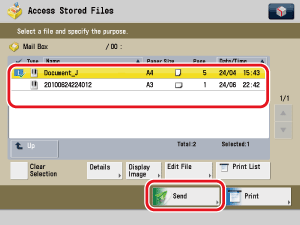
  1. Select the file that you want to send → press [Send].

To select all of the files (up to 100 files from the top) in the mail box, press [Select All (Max 100 Files)]. If a file is already selected, this key appears as [Clear Selection] instead.

To cancel all files, press [Clear Selection]. ([Clear Selection] changes to [Select All (Max 100 Files)].)

  • A maximum of 32 files stored in the same mail box can be selected and sent at the same time.
  • A maximum of 999 pages can be sent simultaneously.
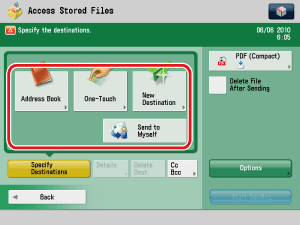
  1. Specify the destinations.

  • AA maximum of 256 destinations can be specified at the same time. If you specify a group, which is made up of several destinations, each destination is counted as a separate destination.
  • The icons that are displayed on the screen are:
  • : E-mail
  • : Fax
  • : I-Fax
  • : File Server
  • : Group
  • : Mail Box
  • : Bcc
  • : Cc
  • If a destination is stored in the Address List:
  • If a destination is stored in a One-Touch Button:
  • If a destination is not stored in the Address List:
  • If you want to specify Cc or Bcc addresses:

  • If a destination is stored in the Address List:
  • Press [Address List] → select the desired destination.

  • If a destination is stored in a One-Touch Button:
  • Press [One-touch] → select the one-touch button that contains the desired destination.

  • If a destination is not stored in the Address List:
  • Press [New Destination] → select a sending method → enter the desired destination.
  • The maximum number of new destinations that can be sent at one time is 256. Mail boxes are not included in this count.

  • If you want to specify Cc or Bcc addresses:
  • Press [Cc Bcc] → specify the e-mail addresses.
  • Only e-mail addresses can be specified as Cc and Bcc addresses.
  • TThe maximum number of Cc and Bcc destinations that can be sent at one time is 256 including the destination specified for [To]. Mail boxes are not included in this count.

  1. Press [File Format] → select a file format for sending your file.

This part of the procedure is not necessary if any one of the following is true:

  • A fax address is specified as the destination
  • An I-fax address is specified as the destination
  • A Mail Box is specified as the destination
  1. Press [Options] → specify the desired send settings.
  1. Press [Start Sending].

See "Scan and Send" for instructions on the following:

  • Specifying a destination
  • Selecting the file format
  • Specifying the Send settings
  • If [Restrict New Address] is set to 'On' in the [Function Settings] (Settings/Registration), you cannot enter a destination in [New Destination]. You have to select a stored destination by using the Local Address Book or Remote Address Book in [Address Book], or pressing a one touch button in [One-Touch].
  • If you want to automatically delete the selected file after it is sent, press [Delete After Sending].
  • While the file is being sent, you cannot print or store it in another mail box.
  • If the selected destination is a group address that includes a mail box, the file you are sending will not be sent to (and stored in) that mail box.
  1. Press [OK].

  • Back To Top