





Settings/Registration
> Function Settings
> Common
> Paper Feed Settings
> Setting Whether to Match the Printed Side for One-Sided and Two-Sided Printing

| Setting Whether to Match the Printed Side for One-Sided and Two-Sided Printing |
|
To "Settings/Registration Table" When using paper for which you have to consider which side is the front side, such as paper with a logo printed on it, you can specify [Print Side Priority], which enables you to print the first page on the front side of the paper for both one-sided and two-sided printing, without having to change the orientation of the paper.
|
| Paper with logo Front side  Back side Back side |
Original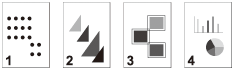 |
 |
|
One-sided printing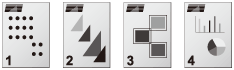 Prints on the front side |
Two-sided printing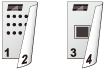 Prints the 1st page, 3rd page, and subsequent odd-numbered pages on the front side |
|
To achieve the above printing results, set the paper orientation as indicated below. |
|
Print Method | Paper Source | Paper Orientation |
| When [Speed Priority] is set | One-sided printing | Paper drawer | Place the front side face up |
| Multi-purpose tray/paper deck unit | Place the front side face down | ||
| Two-sided printing | Paper drawer | Place the front side face down | |
| Multi-purpose tray/paper deck unit | Place the front side face up | ||
| When [Print Side Priority] is set | One-sided/Two-sided printing | Paper drawer | Place the front side face down |
| Multi-purpose tray/paper deck unit | Place the front side face up |
| Remark |
|
|
|||||
|
 (Settings/Registration) → [Function Settings] → [Common] → [Paper Feed Settings] → [Feed Method Switch].
|