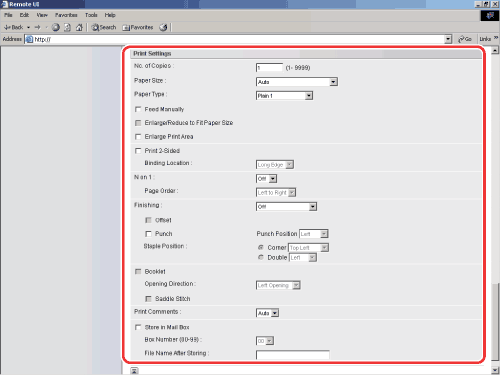
Details of each menu are shown below.
| [No. of Copies] |
This setting enables you to specify the number of copies printed. |
| [Paper Size] |
This setting specifies the output paper size.
- If [Auto] is selected, the most appropriate paper source is selected according to the PDF file page size.
- If a setting other than [Auto] is selected, the file is printed so that the orientation of the long edge of the PDF file page size and the long edge of the selected paper matches.
If the PDF file page size exceeds the largest or smallest size of the user defined paper, jobs are canceled. (They are not included in the Prints count.)
|
| [Paper Type] |
This setting specifies the output paper type. |
| [Feed Manually] |
This setting enables you to fix the paper feed source to manual feed. |
| [Enlarge/Reduce to Fit Paper Size] |
If you select the checkbox, the selected page size is enlarged or reduced with the same ratio for both the length and width to print within the printable area. However this function is not available if [Auto] is selected in [Paper Size]. |
| [Enlarge Print Area] |
This setting specifies whether to enlarge the printable area to the edge of the paper. |
| [Print 2-Side] |
This setting specifies whether to print on one-side or both sides of the paper. |
| [Binding Location] |
This setting specifies whether to place the binding position along the long edge or the short edge of the paper. If the margin is specified on the touch panel display, the binding margin position is automatically adjusted on the front and back sides of the paper.
For more information, see "Gutter." |
| [N on 1] |
You can print several pages of PDF file data on 1 sheet of paper. Multiple pages are printed from (top) left to right. |
| [Page Order] |
If you print multiple pages on one page in the [Page Layout] settings, you can specify the order that the pages are arranged onto the source paper. |
| [Finishing]* |
This setting specifies whether to print in pages or copies.
- If [Off] is selected, all copies of the same page are printed before the next page is printed.
- If [Collate (Page order)] is selected, all pages of each copy are printed before the next copy is printed.
- If [Group (Same pages)] is selected, all copies of the same page are printed before the next page is printed.
- If [Staple+Collate] is selected, all pages of each copy (collating) are printed and stapled.
|
| [Offset]* |
- If the checkbox and [Collate (Page order)] are selected in [Finishing], all pages of each copy (collating) are printed, and every other complete copy is offset to indicate where each copy starts.
- If the checkbox and [Group (Same pages)] are selected in [Finishing], all copies of the same page are printed before printing the next page. Every other complete set of pages is offset to indicate where each new set starts.
|
| [Punch]* |
This setting allows you to punch holes in the printed-paper.
Select the checkbox and one of either [Left], [Right], [Top], or [Bottom].
If you select both the staple and punch settings, specify the punch and staple settings so the positions match. If the positions do not match (for example, the staple position is on the right and the punch position is on the left), both settings are void and the paper is printed without either stapling or punching.
The number of holes that can be punched varies depending on the type of puncher unit of the attached finisher. |
| [Staple Position]* |
This setting specifies the staple position if [Staple+Collate] is selected in [Finishing].
- If [Corner] is selected, you can select one of either [Top Left], [Top Right], [Bottom Left], or [Bottom Right].
- If [Double] is selected, you can select one of either [Left], [Right], [Top], or [Bottom].
|
| [Booklet]* |
This setting enables you to prepare the printout for binding as a booklet. Booklet printing is a process whereby two pages of data are printed on the front and back of one page and it is folded in half to create a book. |
| [Print Comments] |
This setting specifies whether to print annotations.
- If [Off] is selected, no annotations are printed.
- If [Auto] is selected, only the annotations specified for printing in the PDF file are printed.
|
| [Store in Mail Box] |
To store the data in a mail box, select [Store in Mail Box] and then select the destination mail box. |
| [File Name After Storing] |
To store the data in a mail box, you can specify the file name.
The file name cannot exceed 24 characters. |