| |
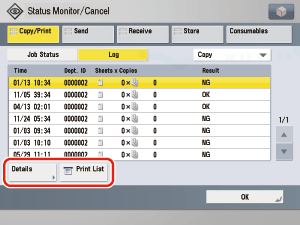
- Press [Print List] → [Yes].
- The log can be printed only if A3, B4, A4 or A4R (plain, recycled, thin, or color paper) is loaded in one of the paper sources that is set to 'On' when [Other] is pressed to select a paper source in [Paper Drawer Auto Selection On/Off] in [Function Settings] (Settings/Registration). (See "Setting the Paper Drawer Auto Selection On/Off.") However, if [Consider Paper Type] for Copy is set to 'On' in [Paper Drawer Auto Selection On/Off] in [Function Settings] (Settings/Registration), you cannot print from a paper source with color paper specified.
|

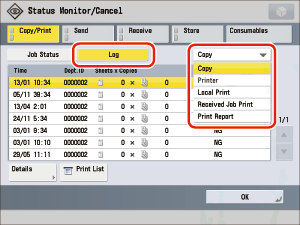
 (Status Monitor/Cancel) → [Copy/Print].