Access Stored Files > Collating Prints > Page Order (Collate)

*
Page Order (Collate)

Return to Overview


  1. Select the desired Mail Box.
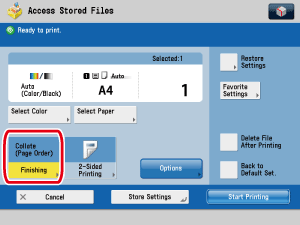
  1. Select the file that you want to print → press [Print] → [Change Print Settings] → [Finishing].

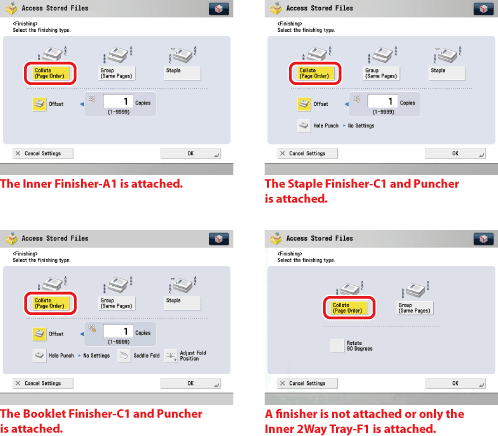
  1. Press [Collate (Page order)].

If you want to make hole punches, press [Hole Punch].

To print a PDF file with [Hole Punch] set, select the location of the binding holes → press [OK].

To perform saddle folding, press [Saddle Fold].

  • If you select [Rotate 90 Degrees]:

  • If you select [Rotate 90 Degrees]:
  • Press [Change] → select [A4], [A4R], [B5], or [B5R].
  • [Rotate 90 Degrees] can be selected only in the following cases:
  • If the available paper size is selected manually
  • If the available paper size is loaded in both the horizontal and vertical directions
  • The selected drawer must have [Paper Drawer Auto Selection On/Off] set to 'On'. (See "Setting the Paper Drawer Auto Selection On/Off.")
  • If there is no paper which can be rotated, the output will be collated.
  • Press [OK].

  1. Press [OK].
  1. Press [Start Printing].

  • Back To Top